Settings › Appearance
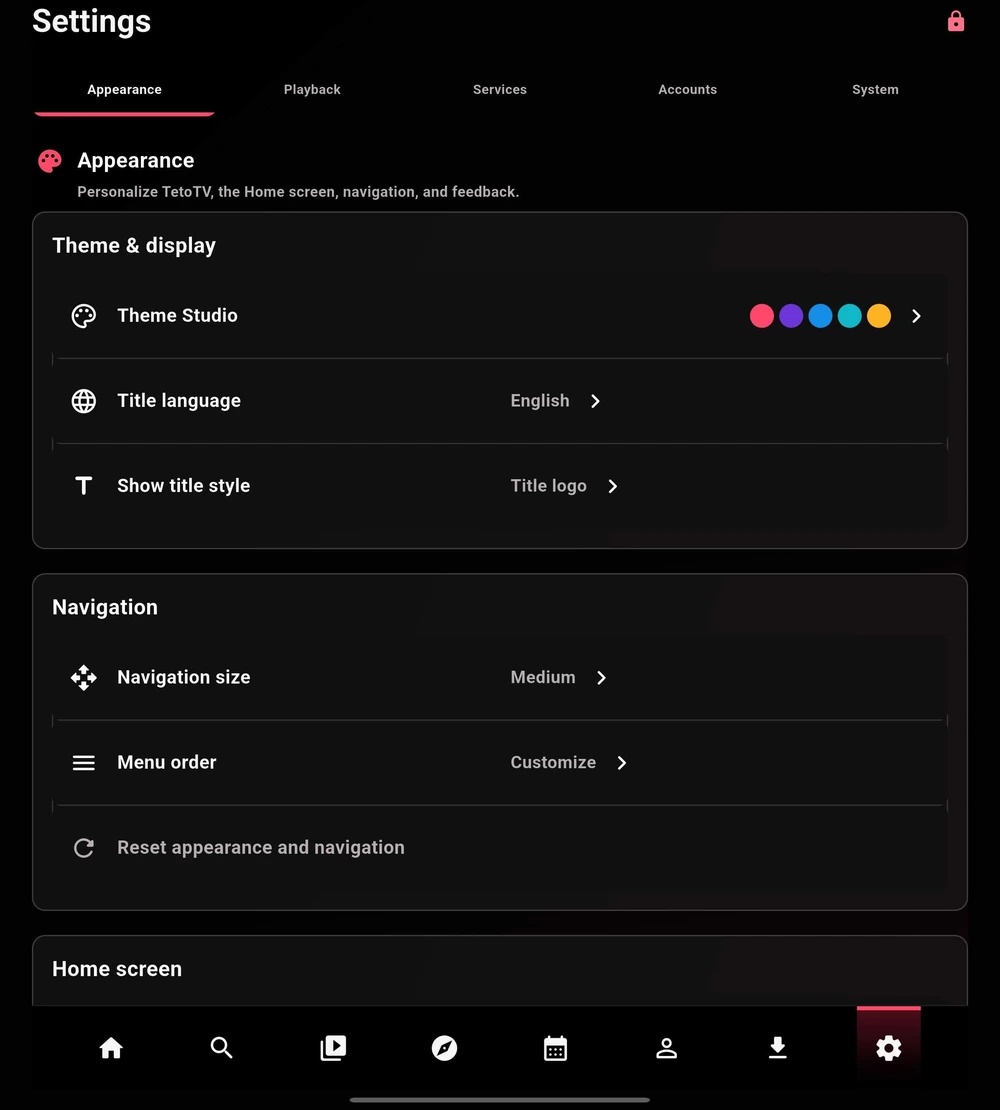
Theme & display
Open Theme Studio to adjust the app’s appearance. Title language and show-title style are separate options, so you can change the presentation without changing your playback language.
| Control | Use it to |
|---|---|
| Theme Studio | Choose the visual theme and supported color options. |
| Title language / Show title style | Choose how title names and title artwork appear. |
| Navigation size / Menu order | Make navigation comfortable and put your usual destinations first. |
| Reset appearance and navigation | Return visual and navigation choices to their defaults. Review the prompt before confirming. |
Layout, cards & feedback
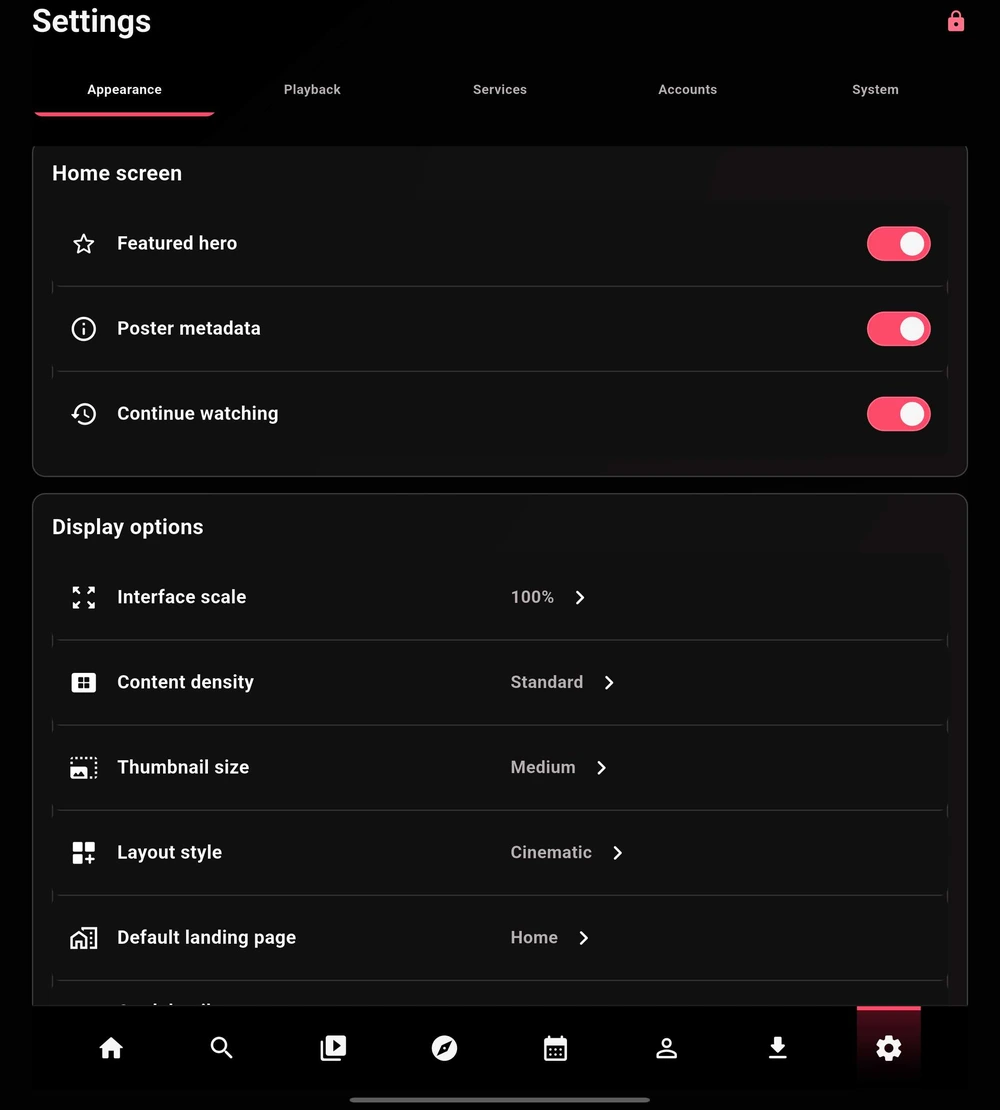
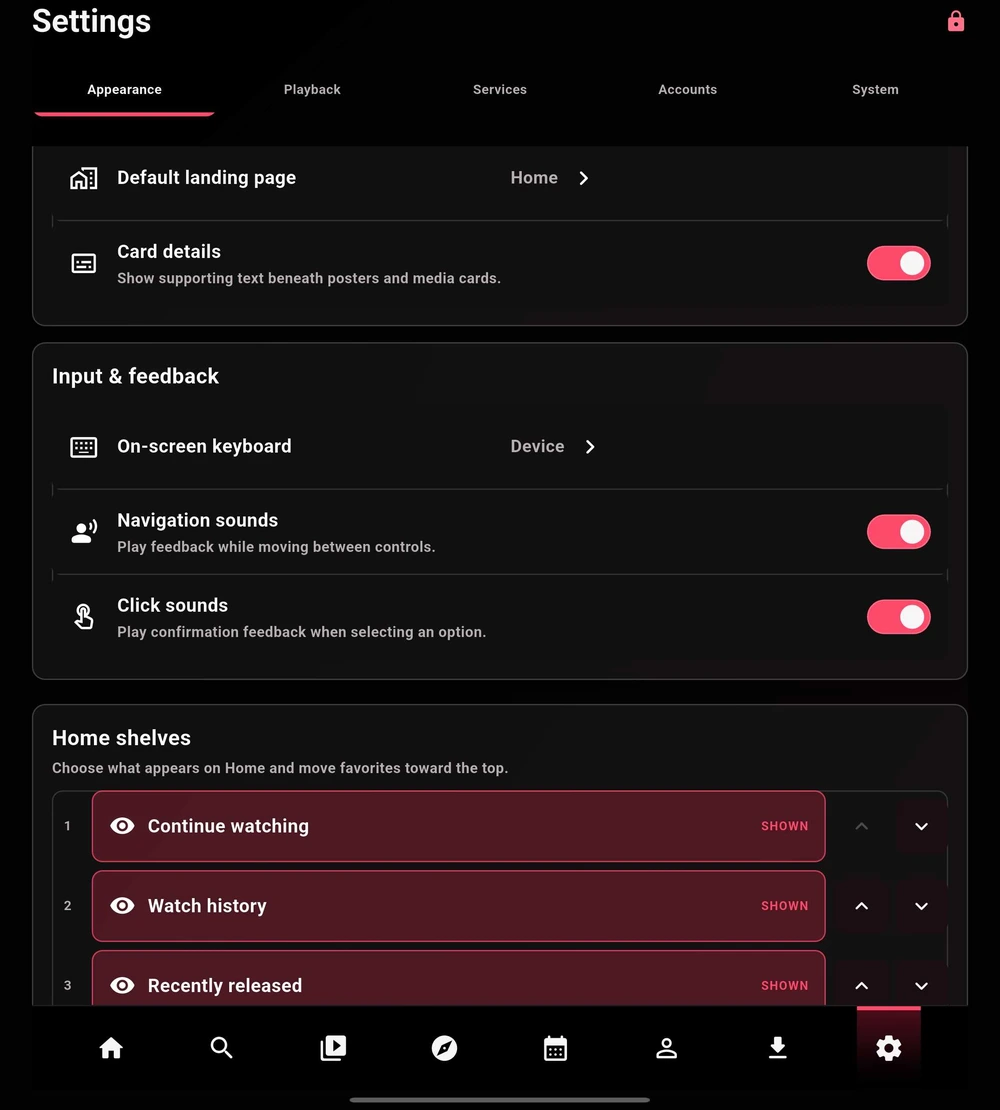
Adjust Interface scale, Content density, Thumbnail size, and Layout style in Display options. Use Default landing page to choose where the app opens.
Featured hero, poster metadata, Continue watching, and card details control how much information appears. Keyboard preference, navigation sounds, and click sounds live under Input & feedback.
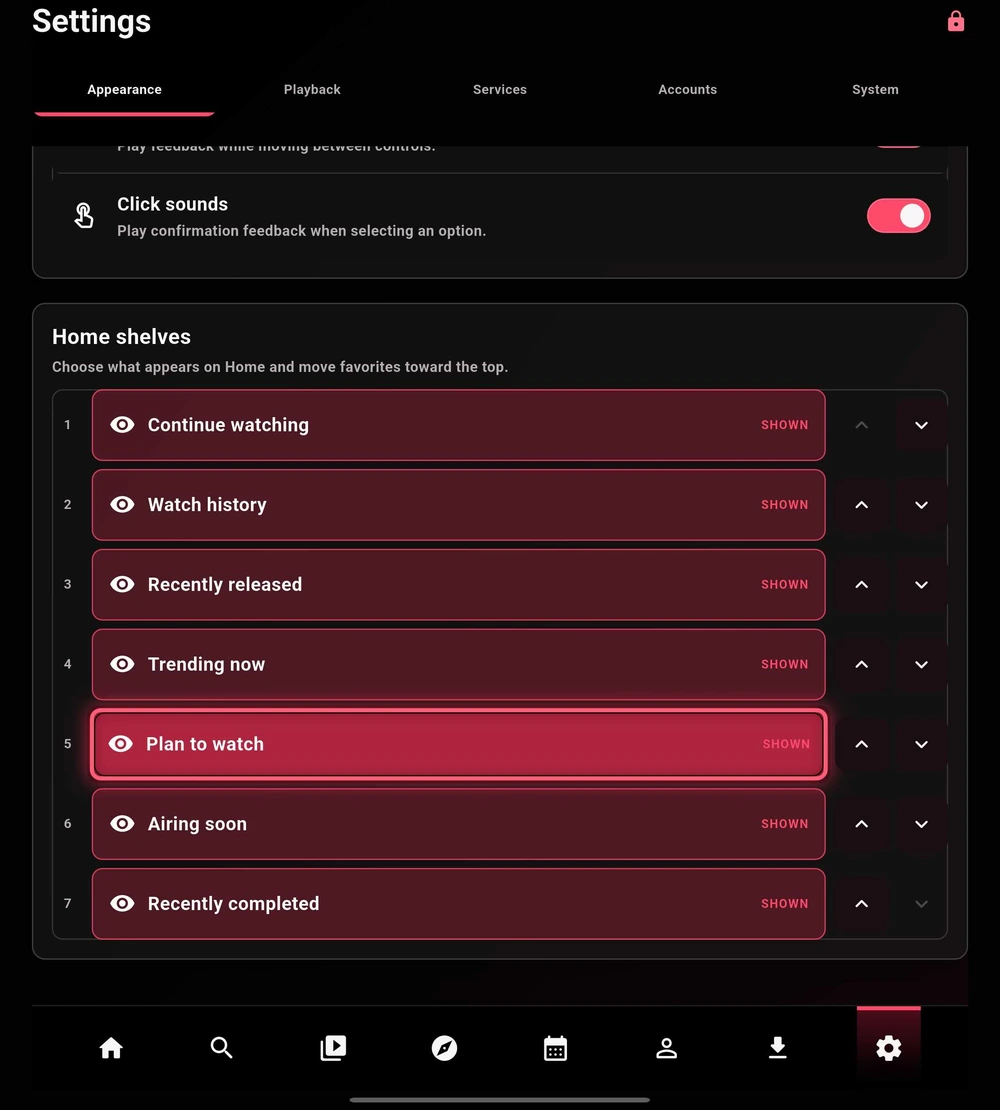
Home shelves
Show or hide shelves and use the up/down controls to reorder them. The captured build includes Continue watching, Watch history, Recently released, Trending now, Plan to watch, Airing soon, and Recently completed.
- Open Settings → Appearance → Home shelves.
- Hide rows you do not use, then move your most useful rows toward the top.
- Return to Home and check the result. An enabled shelf may still be empty when it has no matching content.