
Before you begin
| What you need | Details |
|---|---|
| A supported Android device | Android 7.0 or newer. This includes supported Android TV, Google TV, phones, and tablets. Fire TV requires Fire OS 6 or newer; Fire OS 5 is not supported. |
| The TetoTV Beta APK | Use the project’s official release page. The universal Android APK includes ARM64 and ARM32 support. |
| An internet connection | Needed for account linking, online metadata, and online sources. Completed downloads can be played offline. |
| Your chosen services, optionally | A tracker account, a personal media library, or a supported service you already use. A Debrid account is not required to use TetoTV. |
| A phone or computer, optionally | Useful for secure account linking and entering long repository addresses. |
Install the Beta
Using Downloader?
Enter code 5362071 in Downloader and select Go to download the APK.
- Open the official release page. Read the release notes and disclosures, then download the APK for the Beta build you intend to install. Open releases
- Transfer or download the APK to your device. Open it using the browser or file manager you chose. Android may ask you to allow that app to install unknown apps; allow only the app you are using, then turn the permission off again afterward.
- Install and open TetoTV. If you are updating an existing installation, review the update details before continuing. Do not uninstall simply to troubleshoot an update: uninstalling can remove app data.
- Check for updates after installation. Complete first-time setup, then open Settings → System → Check for updates. Install any available update before you start watching. The APK obtained through Downloader may be an older build.
Choose your setup method
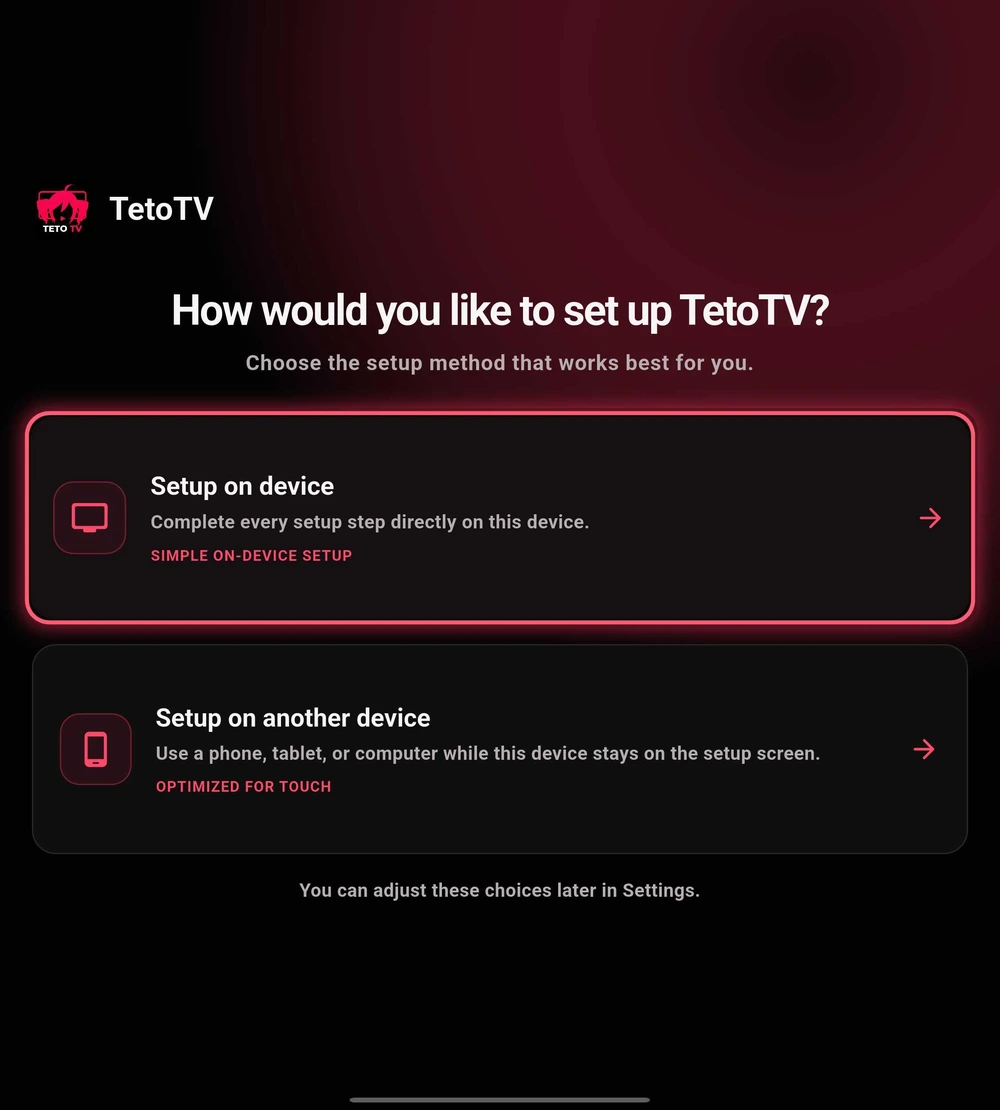
When TetoTV opens for the first time, choose the setup route that feels easiest.
On-device setup works with your remote or touch controls. Phone setup is convenient for account linking and long source addresses.
 Enlarge
Connect Seanime extensions
TetoTV supports Seanime-format provider extensions directly in the app. To add one, open Settings → Services → Manage sources, add your chosen compatible HTTPS repository, and install a supported provider from its catalog. You can enter the repository address from your phone instead of using the TV keyboard.
No separate Seanime installation or server is required. Compatibility varies by provider and version, and no repositories or extensions are bundled or recommended.
Check your first playback
- Finish setup, then use Search or Discover to open a title.
- Choose an episode and select an available source you are authorized to play. Finding a title in the catalog does not guarantee that your configured sources can play it.
- Check audio, subtitles, and seeking. Make one adjustment at a time in Settings → Playback so you can tell what changed.