
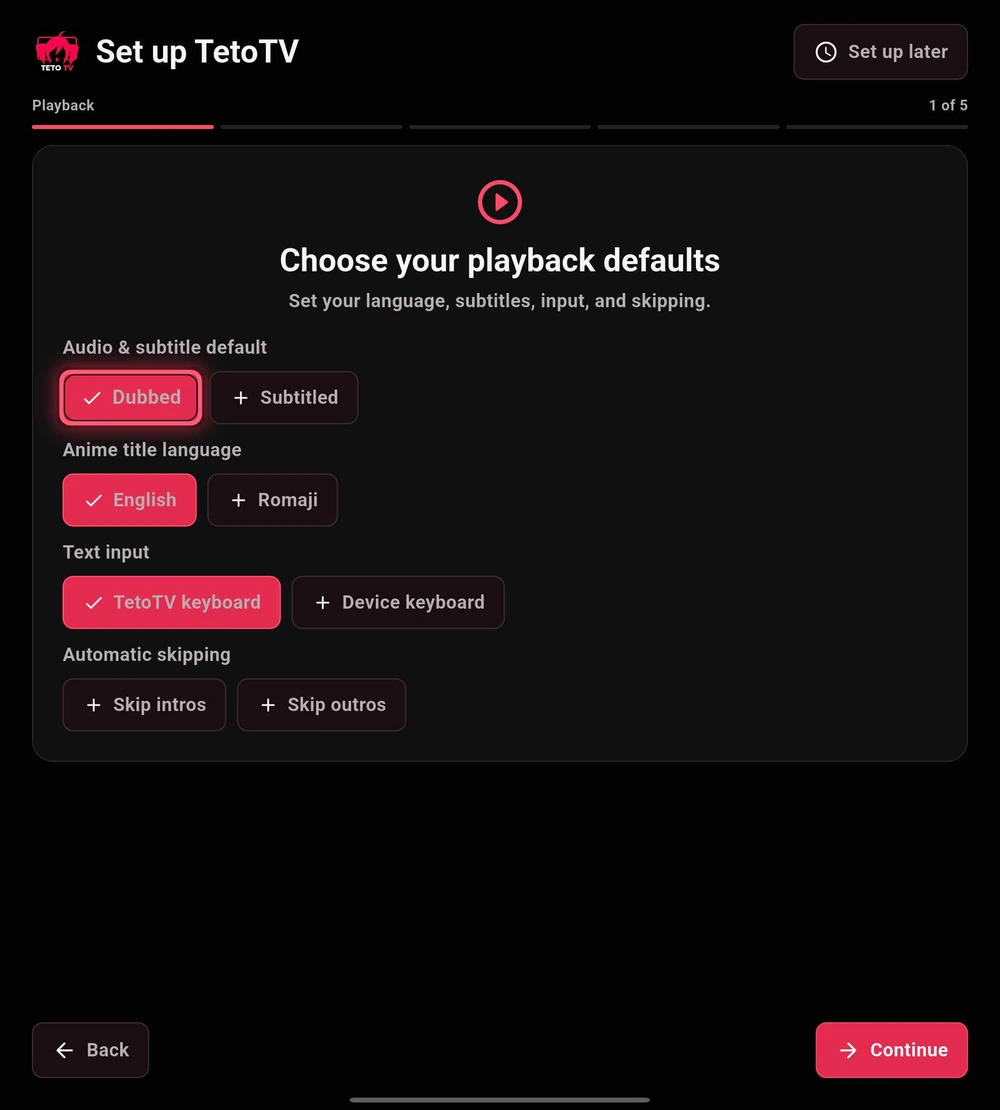
01 · Playback defaults
Start with the language and controls you use most. You can adjust these choices later in Settings.
- Audio and subtitles: choose your preferred dubbed or subtitled experience. Available tracks still depend on the source.
- Anime title language: select English or Romaji for displayed title names.
- Text input: choose the TetoTV keyboard or your device keyboard.
- Automatic skipping: decide whether detected intros or outros should be skipped. Leave it off to keep manual control.
Select Continue when you are ready.
 Enlarge
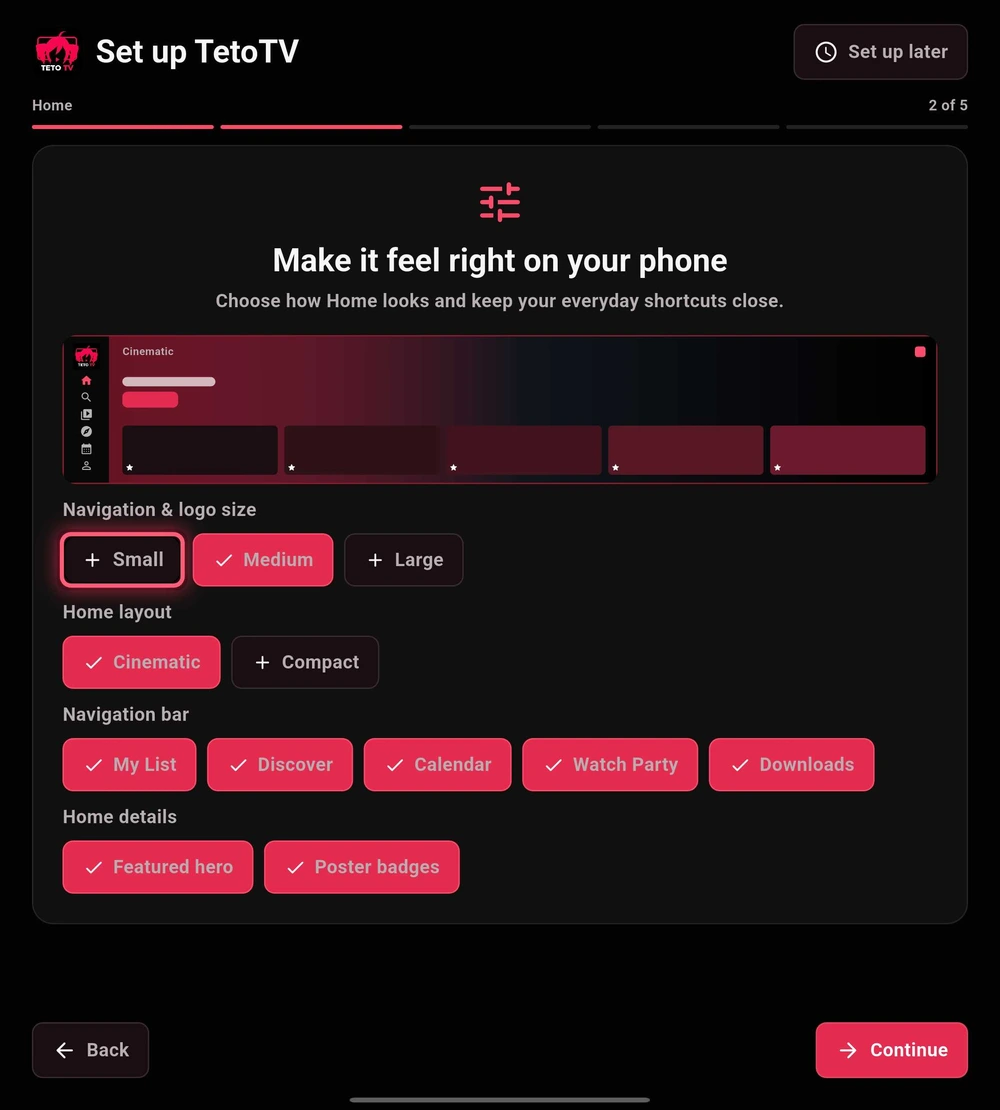
02 · Make Home your own
Use the live preview to choose a layout that is comfortable on your screen.
- Choose a navigation and logo size that is easy to read from your normal viewing distance.
- Choose Cinematic or Compact, then decide which navigation destinations should be visible.
- Choose whether to show details such as the featured hero and poster badges. Continue to Streaming.
For more control over shelves and their order, see Appearance.
 Enlarge
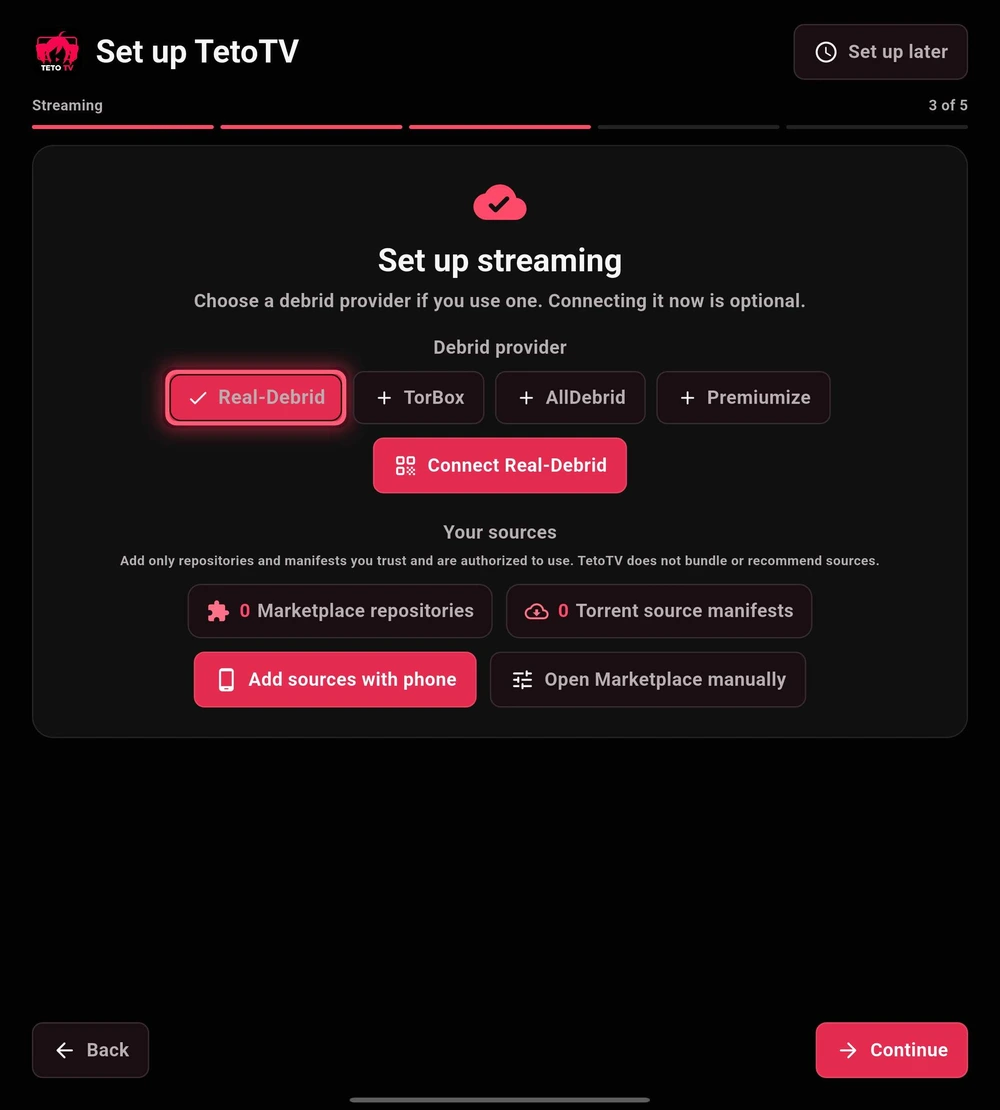
03 · Connect your sources
Connect a supported Debrid service only if you use one. Source repositories and manifests are supplied by you; they are not bundled with the app.
- Select a service you have an account with and follow its authorization flow, or leave it unconnected.
- Use Add sources with phone for easier typing, or open the Marketplace manually to enter a compatible repository.
- Review the entries you add. Keep only sources you trust and are authorized to use, then select Continue.
 Enlarge
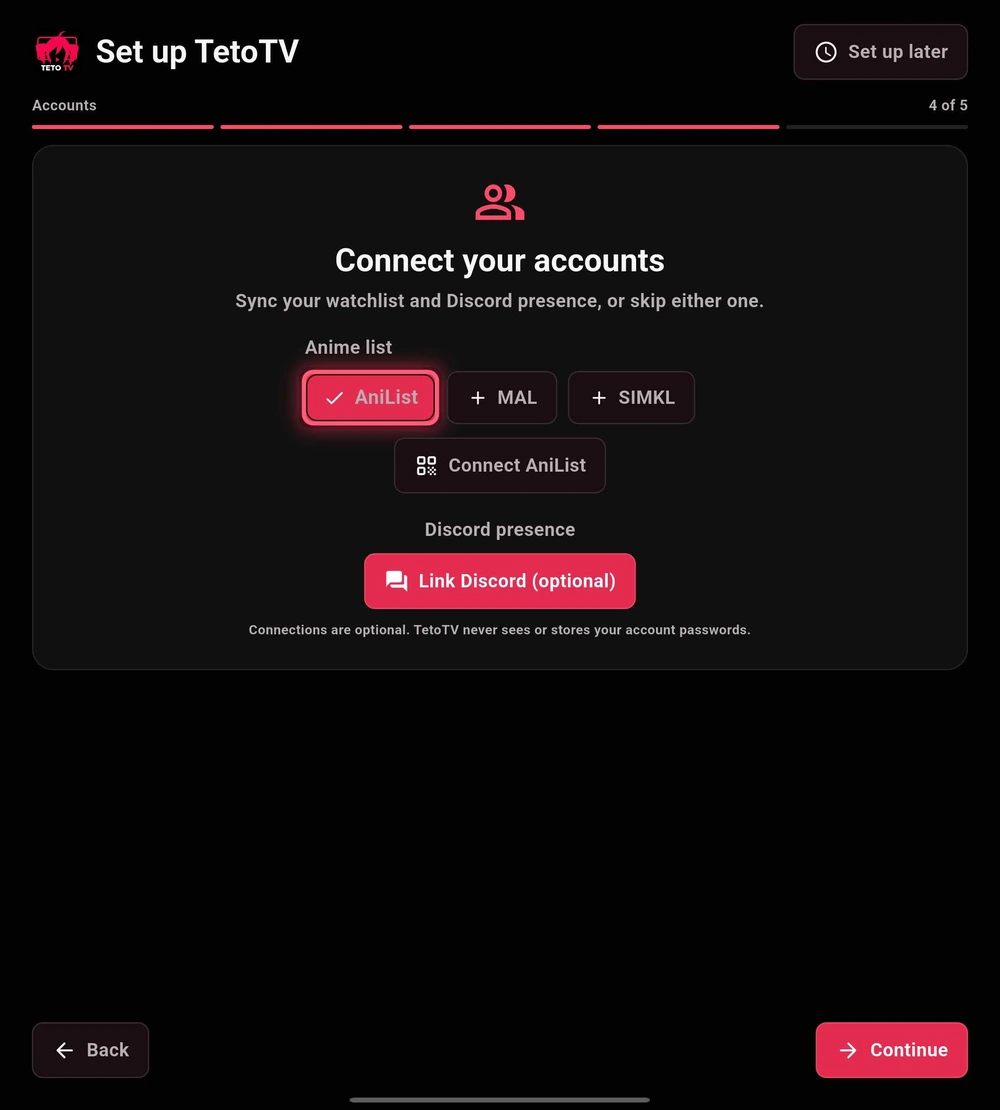
04 · Link your accounts
Link AniList, MyAnimeList, or SIMKL when available to use your existing lists and progress. Discord is a separate, optional connection.
- Choose the tracker you normally use and start the account-linking flow.
- Check that you are authorizing the intended service and account.
- Link Discord only if you want to share activity. Otherwise, skip it and continue.
You can use a local profile without linking a tracker. See Accounts & profiles for details.
 Enlarge
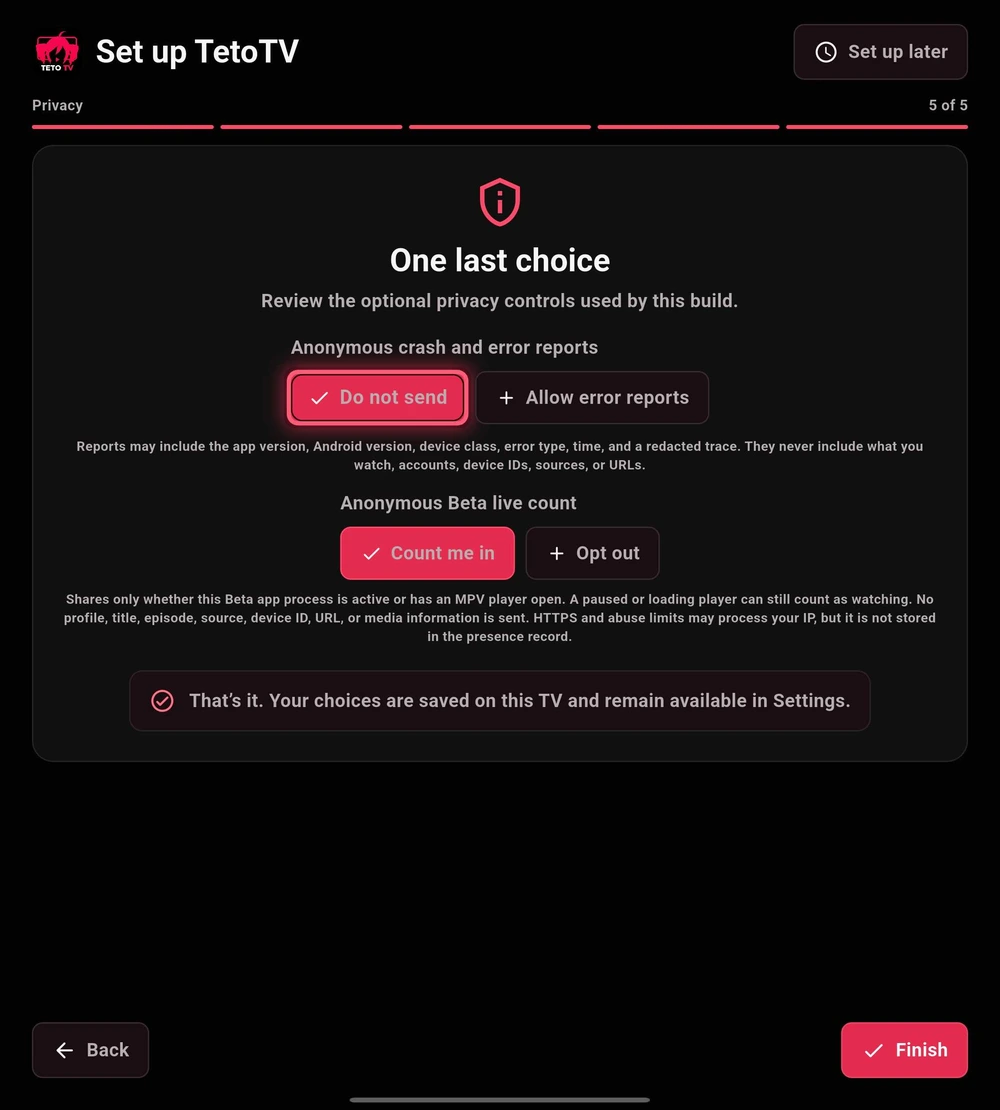
05 · Review privacy and finish
Review the two reporting controls separately. Read the in-app descriptions before deciding what to share.
- Crash and error reports: choose whether to send the redacted technical reports described by the app.
- Beta live count: choose whether this app session contributes to the Beta activity count. It is separate from crash reporting.
- Select Finish. Your choices remain available in Settings → System → Privacy & diagnostics.
Need to revisit the wizard? Use Settings → System → Run setup again.
 Enlarge