
Create a room
- Open Watch Party from navigation. If it is hidden, check feature visibility in Services and navigation settings in Appearance.
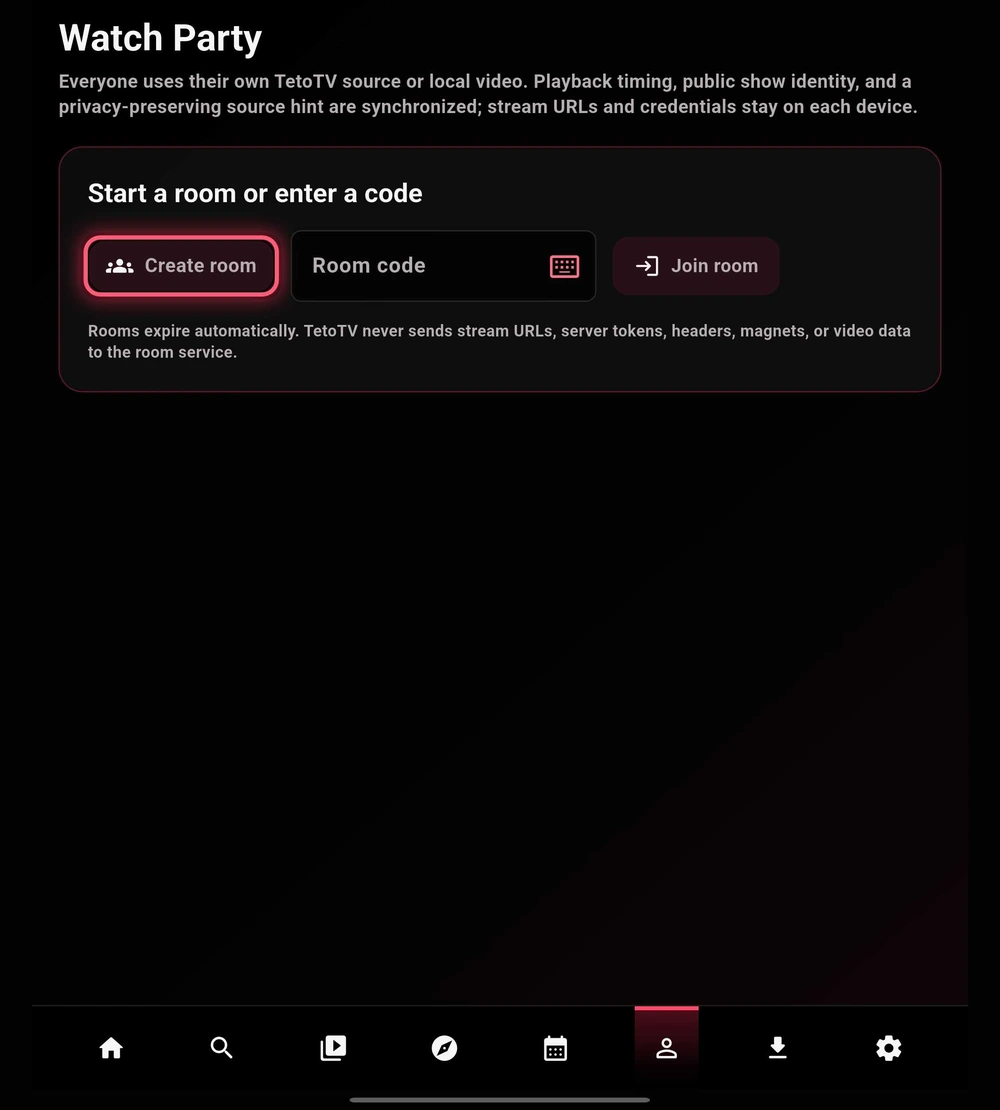
- Select Create room. Share the room code only with the people you intend to invite.
- Choose what to watch using the available episode or player actions. Wait for participants to join and prepare their own sources.
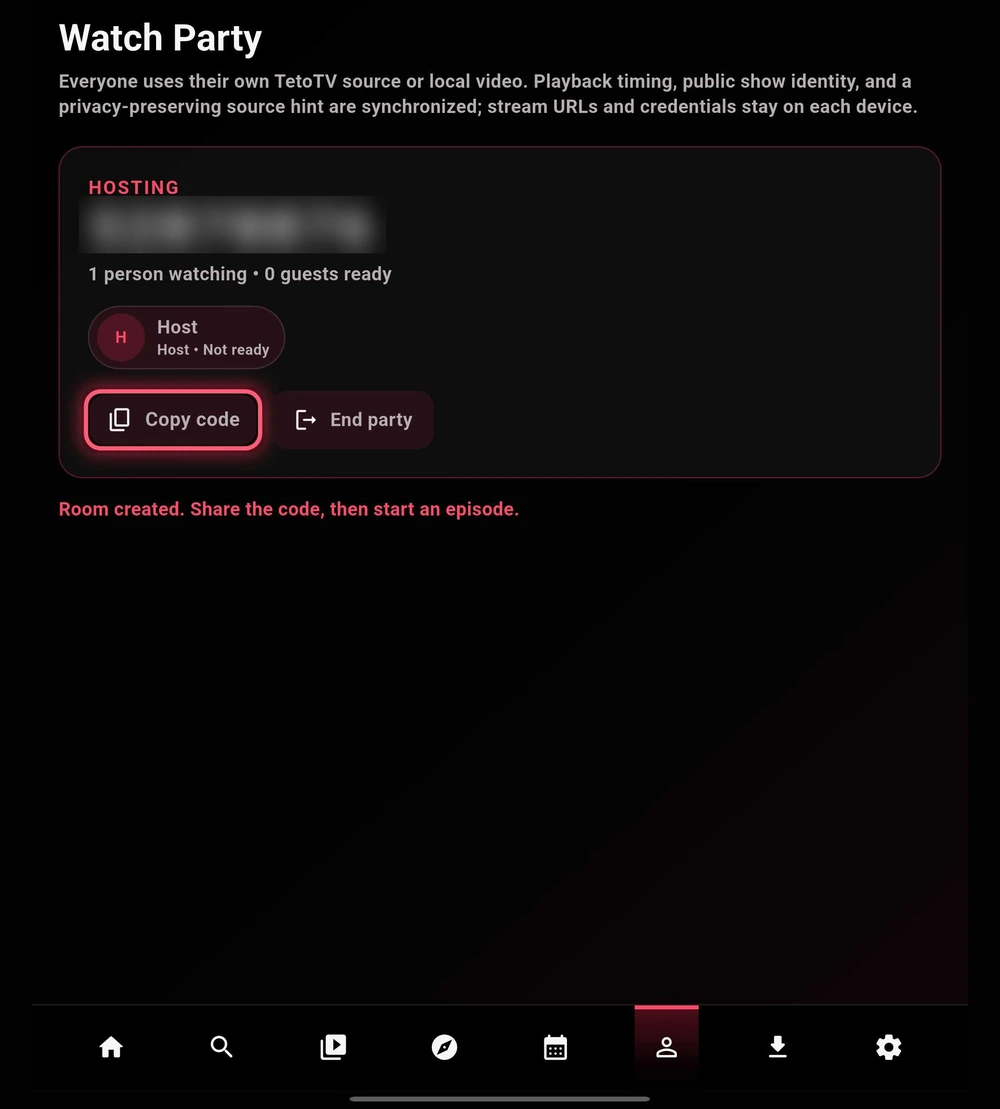
- Confirm the participants and room state, then use the host controls to coordinate playback.
 Enlarge
Join an existing room
- Get the current room code from the host.
- Open Watch Party, enter the code, and select Join room.
- Choose an authorized source for the same episode or video. Different cuts, recaps, or intros can produce a timing mismatch.
- Wait until your player is ready and follow the room’s playback state.
Check the room before playing
Confirm that the expected participants are present. An open room alone does not guarantee that every guest has a playable source or is ready to watch.
Use End party when you are finished. Rooms also expire automatically, so an old code may no longer work.
 Enlarge
What the room shares
| Shared for coordination | Kept on the participant’s device |
|---|---|
| Playback timing and room state | Stream URLs and video data |
| Public show identity | Private-server tokens and request headers |
| A privacy-preserving source hint | Account credentials and magnet links |
These are the app’s documented room boundaries. Each source or service still has its own privacy behavior; Watch Party is not a guarantee of anonymity.
When a room does not work
Check internet access, the room code, and whether the host has ended the room. If timing is inconsistent, confirm that everyone selected the same episode version and let any buffering finish.