
Download an episode or season
- Open a title and choose the episode you want.
- In the source picker, long-press a supported torrent or web source and choose its download action. On a TV, long-press the select/OK control when supported.
- For a season, use Download season on the show when that option is available.
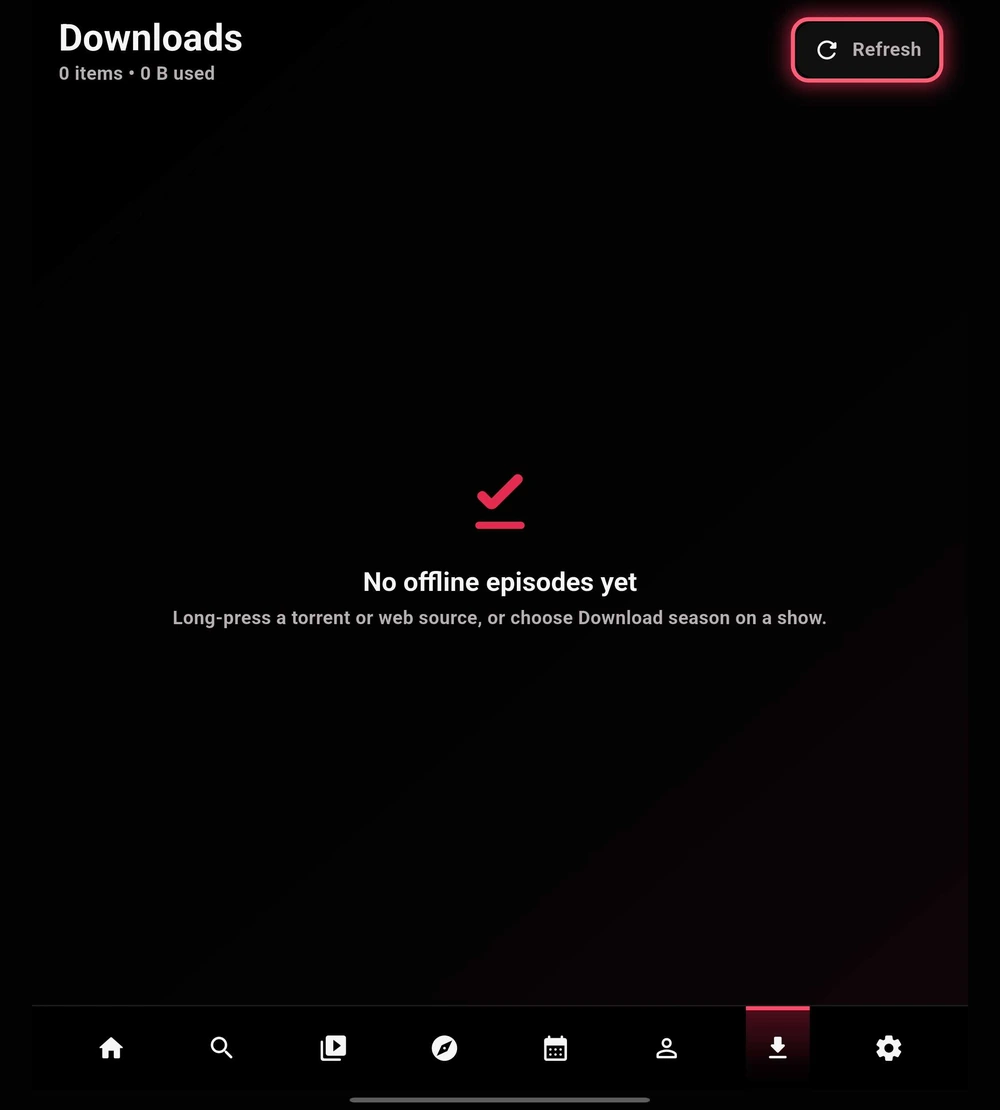
- Open Downloads to review the queue and available storage. Start with one episode to confirm that the selected source works.
Manage the queue
The Download Manager shows active jobs and saved episodes. Depending on the job state, controls include pause, resume, retry, cancel, and delete.
- Check progress and free space before adding a large season queue.
- Use Retry for a failed job after checking connectivity and source authorization. Refresh updates the displayed list; it is not a replacement for retrying a failed transfer.
- Delete saved episodes you no longer need. Deleting a completed download removes its offline copy.
 Enlarge
Play a completed download
Completed episodes appear as offline choices in the normal source picker and play through the normal MPV player. Basic cached metadata and artwork can remain available, and viewing progress is stored locally.
Queued AniList or MyAnimeList progress updates can retry when the connection returns. Before a trip, test a completed episode while offline so you know the file is ready.
Background downloads and interruptions
Supported downloads can continue while TetoTV is minimized. Android force-stop ends active app work, and process termination can interrupt a transfer. An unfinished season plan can resume when the app next opens, but a source with short-lived authorization may need to be selected again.